Do you wish to send money to family and friends as well as business associates by wire transfer, or do you receive money from your customers who are located in other countries? If so, you’ll be happy to know that Wells Fargo has revealed that its customers can now send and receive money from other countries using their accounts.
in order to raise your level of productivity, strengthen your position in the market, and increase your market share. You will need to educate yourself on how to conduct financial transactions in foreign countries because your company absolutely must be able to send and receive payments denominated in other countries’ currencies.
Wells Fargo provides customers with a number of options for sending wire transfers in foreign currency, including in-person at a branch, over the phone, or online. However, in order to make an online wire, customers are required to have a current domicile in the United States.
You also have the ability to receive wire transfers into your account that are denominated in a variety of different currencies.
How do I send an online wire?
You will need the SWIFT/BIC information for the bank that your recipient uses, as well as the recipient’s International Bank Account Number (IBAN), as well as the receiver’s name and address, in order to send an international wire.
When you have all of the information listed above, you may sign in to your online portal to begin the process of making a transfer abroad. The steps in this process are as follows:
You need to log in to your Online portal in order to send a wire transfer using the funds in your Wells Fargo account.
To get started, go to the Transfer & Pay tab and sign up for the Online Wires service.
After that, add the recipient you want to send the gift to, and choose the financing account and amount (along with any additional details required for certain countries).
Check the information that has been provided, and then send your payment.
How to Receive a wire transfer to Wells Fargo
You need to give your full account number, the name on your bank account as it appears on your statement, and identifying information such as your wire routing transit number and SWIFT codes in order to receive a wire transfer to your Wells Fargo account.
Any incoming wire transaction that is denominated in a currency other than the United States dollar… In order to make the cash available to you in U.S. dollars, Wells Fargo will first have to convert the currency from whatever it is currently into U.S. dollars.
The following details must be communicated to the payer in order for you to be able to accept payment through your Wells Fargo account. The information that you will give to the payer is as follows:
Bank Name: Wells Fargo Bank
Wells Fargo Bank Address: 420 Montgomery Street, San Francisco CA 94104
Your full account number
name on your account as it appears on your statement
Receiving bank information such as the name of the bank, address of the bank, and identifying numbers such as wire routing transit number and SWIFT codes
– For international wire sent in U.S. dollars or currency wire sent in is unknown simply make use of Wells Fargo Bank SWIFT Code: WFBIUS6S
-For international wire sent in a foreign currency from the initiating bank: Wells Fargo Bank SWIFT Code: WFBIUS6WFFX
For domestic (U.S.) Wells Fargo Bank wire: Wire routing transit number/ABA: 121000248
Conclusion:
When conducting business on a global scale, you need to give some thought to whether or not you will accept payments in a variety of currencies from your consumers, and whether or not you will be required to make payments to your vendors in a currency other than the United States dollar. You will need to become familiar with the process of the wire transfer in order to use Wells Fargo Online Banking to send and receive money.
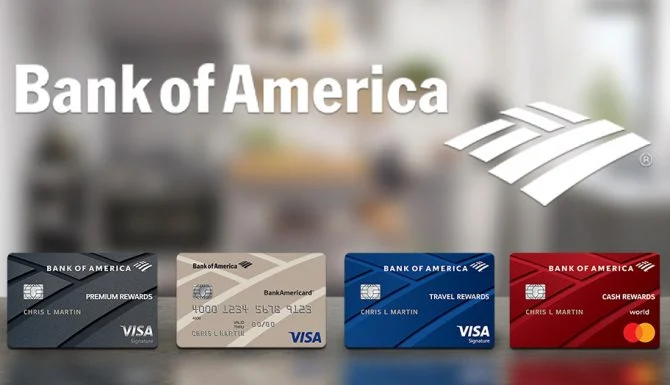
Are you trying to activate your credit card through Bank of America.com? Learn more by reading. If you have any more inquiries regarding the activation of a credit card issued by Bank of America, please feel free to contact us.
You can use CashPay to send money to other people who also have a CashPay account by sending it from your phone to theirs (Think PayPal but run by Bank of America). In addition to CashPay, the Wallet app allows for the storage of information pertaining to debit and credit cards. You can acquire additional information regarding it at the following location: https://promotions.bankofamerica.com/digitalbanking/mobilebanking/digitalwallets.
You will want to make sure that you upload your card or scan it in with the camera on your smartphone before attempting to add it to the Google Wallet application now that the products have been integrated into one.
You can activate cards by going to the app store on your device, downloading “Wallet,” selecting add a virtual wallet, selecting Bank of America from the list of institutions that allow load via NFC, and then entering your card information manually or scanning your card using the camera on your device. This will allow you to load money onto your card using the NFC technology.
How to Add Activate Bank of America.com Credit Card, Debit, and CashPay Cards on Google Wallet
Start the app known as Google Wallet.
Click the icon labeled Tools (It looks like an O with a circle around it). It can be found in the top right-hand corner of your screen, directly to the right of the icons for sending and canceling.
Click the Manage cards button. You can add credit, debit, or cash pay cards to your Google Wallet account here, as well as read information about those cards, such as credit limits and recent transactions. This is also where you can add cash pay cards.
Tap the Add a card from the Bank of America option that is located underneath the list of approved institutions that presently permit load via NFC tap virtual wallet. This will open a new window in which you can choose between using your credit card or your debit card.
To add a new payment method, select it by tapping either the Credit or Debit button. If you have either type of card, you only need to add it once to your account by selecting the debit or credit option. You will be presented with a window that will ask for the information on your physical card (The 16 digits on the front and your full name on the back of your physical card).
After providing the relevant information, select the Add Card option when finished. It ought to appear on your screen as if there are some green lines moving vertically across it, suggesting that it was successfully added to Google Wallet. After you have finished, tap the Done button; however, if you wish to add another card from Bank of America, you will need to repeat step 6 once more.
How to Transfer Money Using Google Wallet
You can send money from any of the email addresses associated with your Gmail account to any of the email addresses that Bank of America has on file for you.
Open the Google Wallet application.
You can contact customer service by tapping the person icon that is found in the bottom right corner of your screen next to the information about your cards and recent purchases. It consists of a head silhouette placed next to a white box that has a red arrow pointing out of it.
Select to send the money. A pop-up window will welcome you and ask you who you would want to email the money to after it has loaded. In the “To” field, enter their whole name or email address, and in the “Amount” field, enter the amount that you want to send them. Tap the Add a message option if you would like to include a personal note with your payment, and then tap the Next button after you are ready. If you don’t think this is necessary, all you need to do is touch the Send button without adding a note.
Click the Bank of America link located under Payment Methods. The button can be found near the bottom of the screen. If you have not utilized Google Wallet or Bank of America on that particular device before, you will be required to check in with your login and password in order to use either service.
After that, Google Wallet should prompt you to input the PIN number that is associated with all of your loaded debit cards. The convenience of using the same personal identification number (PIN) for both cards is preferred by the majority of consumers.
After that, you will be given the option to add an additional email address that is not currently associated with your Gmail account via Bank of America, or you can select Done. Tap “Add email” and carry out step 8 once more if you wish to send money to someone other than yourself. When sending money, the majority of people like to use multiple email addresses because it can become confusing if too many go into one account. If this is your preference as well, you are free to stop here after you have inputted the information. If this is not the case, hit the Next button located in the upper right-hand corner of your screen after providing all of the essential information.
Repeat entering your password and pressing the box that says “I agree with the terms and conditions” to reaffirm your payment. Google Wallet will notify you that the transaction has been completed successfully once everything has been checked out and found to be in order. Make sure you check your email for a confirmation from Bank of America once the payment has been sent to another account and received there.
After that, you may go back into Google Wallet and select the option with a green arrow that says Resend money if you want to resend the same payment again. Alternatively, you can amend it by selecting the option with a red arrow that says Edit next to it.
How to Add Money Using Cash with Google Wallet
If you have a Bank of America debit card, you can use Cash to add funds straight to your virtual wallet by visiting their website at https://cash.bankofamerica.com/GoogleWallet. This option is only available with Bank of America debit cards.
In the space designated for “Cardholder’s name,” type in your full name as it is printed on your actual card. Enter both names, separated by a comma, if the account is held jointly by more than one person.
Enter the 16-digit number that may be found on the back of your actual card, and then choose the Next button. In order to maintain a certain level of security, you might or might not see a star depending on whether or not you entered the correct numbers. Do not be frightened if you do not see a phishing scam as this is done to protect you from any scams that may be committed online.
Enter the final four digits of your Social Security number as they appear on the back of your physical card below the Card security code, and then select the Verify button. The same boxes will automatically fill out as they did before, and the final product will look like this: Cardholder’s name (How it appears on Bank of America) Card number with 16 digits The final four digits of the SSN
After you have successfully input all of the essential information, pick the Continue button. In order for you to verify the transaction, an email will be sent to the Gmail address associated with your account. You can also access it directly through the Bank of America website HERE. After entering your full name, as it appears on your physical card, along with your 16-digit card number, and then select the Login button, you will have access to it. Once you have logged in to that website, navigate to the Accounts section and pick My Wallet. After that, navigate to the Payment methods section and select Add funds using Google Wallet.
Choose debit from Bank of America from the list that is displayed on the left-hand sidebar of the services that are offered. It is a square with a red border that is blue on the outside and white text on the inside.
Benefits of Using Activate Bank of America.com Credit Card
There are no recurring costs.
When you activate, you will be eligible to receive up to ten percent cashback in different categories every three months.
Free of charge interest on debt transfers and purchases made within the first 15 billing cycles of having the credit card.
The points earned on a Rewards credit card from Bank of America can be redeemed for either a statement credit or a deposit into a savings or checking account.
How to Activate Bank of America.com Credit Card
After you have received the card, go to https://www.bankofamerica.com/ and select Sign in from the menu that appears in the top right-hand corner of any page on their website. This will allow you to access your account.
Choose Credit Cards from the list of options provided in the menu on the website’s sidebar to the left. To manage your credit cards, go to the Payment & Transfer options section, which is situated on the top left of the screen, below the Account balance.
In the area titled “Important details,” click the Activate Credit Card button. (This could be a little different depending on whatever version of Bank of America you are using.)
Enter a 16-digit number and then pick the Continue button on the new credit card. After that, you will be prompted to enter the final four digits of your Social Security number before being given the option to continue. After that, click Continue a second time to confirm the addition of this payment method as an option that will be used by default for all future transactions.
How to Activate Bank of America.com Credit Card
Bank Of America Credit Card
Log into your account at https://www.bankofamerica.com/ by entering the email address and password you made when you signed up for an account.
Under “Important details,” click on “Activate Credit Card.” (This could be a little different depending on which version of Bank of America you use.)
Enter the new credit card’s 16-digit number, then click Continue. Then you’ll be asked to type in the last four numbers of your SSN and click Continue again. Then, click Continue again to confirm that you want to use this method of payment for all future transactions.
How to Activate Bank of America.com Credit Card by Phone
Call the customer service number and talk to someone from the bank. You will get help from the right person.
How to Activate Activate Bank of America.com using a Mobile App
The Online Banking ID is the quickest and easiest way to activate your Bank of America credit card. If you don’t use this service, sign up now so that it can be turned on for transactions in the future.
Benefits of Using Bank of America Debit Card
With a busy schedule, the Bank of America card makes life easier by giving you access to your money at any time.
The best way to use your money is when and where you want, so get out there!
Avoid monthly bills and interest payments with a Bank of America debit card.
Secure and convenient.
Benefits of Using Bank of America CashPay Card
With a CashPay card from Bank of America, you can get your paychecks in a quick and easy way that doesn’t cost much. When you use a Bank of America CashPay prepaid card, you can do the following:
Control your money (take it when you need it).
Access your funds 24/7.
Added security (no need to carry cash).
Access to account information online and through customer service.
Convenience – Instant access to pay by 9 am on payday.
How to Activate the Bank of America CashPay Prepaid Card
The CashPay MasterCard is a great way to pay for everything you need. Just go to the link, enter your card number, and click “Continue.” Within a minute, your card will be activated.
FAQ’s
How to Activate Bank of America Credit Cards by Phone?
Follow the instructions below for a step-by-step guide on how to activate a credit card over the phone:
Sign in to your online account. Note that if you haven’t already set this up, it will take 24 hours.
How to Activate Bank of America Credit Card via Mobile App?
Follow the instructions below for a step-by-step guide on how to activate a credit card through a mobile app:
Choose the “Go to Cards” option from the menu at the bottom of the screen.
Choose the card you want to use, then click Continue. With this account, you can now use your credit or debit card at any time. Once this option is turned on, you won’t even need cash because you can pay for things straight from your bank account.
How to Activate Bank of America Credit Card by Mail?
A: Follow the instructions below for a step-by-step guide on how to activate a credit card by mail:
Sign in to your bank account online. If you haven’t already set this up, keep in mind that it takes 24 hours.
Choose the “Go to Cards” option from the menu at the bottom of the screen.
Under Other cards, click Add and then follow the on-screen instructions. You can use this option to either activate a new credit card or replace an old one. If you want to add a new credit card, click “Activate Credit Card” under “Hard Credit Pull” and fill in all the necessary information, such as the phone number on the card, the PIN you want, and the account number. When you are done, click Continue.
Conclusion
It’s easy to activate a credit card from Bank of America online. Just follow the steps given above, and you should be ready to go in no time!
Now that your card has been activated, feel free to use it the next time you go shopping or pay for groceries at a nearby store.
If you have more questions about how to activate a Bank of America credit card, feel free to leave a comment below so we can see what you need help with. We hope this article made it clear how to activate a card by mail, through a mobile app, or through online banking.
The Central Bank of Nigeria has issued a digital currency called the eNaira for use in Nigeria.
It is a form of digital currency that can be used to conduct business transactions, but not with traditional financial institutions like banks. Naira note.
Transactions will be able to take place in a swift and secure manner thanks to the eNaira, Nigeria’s digital currency. In all practical respects, it is analogous to using your bank’s ATM card to make transactions.
Your bank will be the only place where you may add funds to your eNaira wallet. You might, for instance, be able to add funds to your eNaira wallet through First Bank.
In this post, I will walk you through the process of downloading, installing, and using the eNaira wallet program, which is a digital money. I will do it in a step-by-step manner.
Download eNaira Wallet App for Android
The following is the process that must be followed in order to install the eNaira Wallet app on your Android device:
Click on “Signup” to commence the onboarding process
Select your Relationship Bank or eNaira Partner
Enter your mobile phone number and create password
Enter the following personal details; First Name, Surname, Date of Birth, State of Origin, Account Number and BVN
On successful validation of the above details. A wallet activation mail will be sent to the email address tied to your BVN.
Click on “Activate wallet” in your mailbox to confirm your email and activate your Speed eNaira Wallet
To access your eNaira Speed Wallet, log in with your username (the email address that is associated with your BVN) and Password.
Before you may download the app on an iOS device with a study, you should be aware that Apple could require you to authenticate your identity by entering your passcode, using touch ID or Face ID, or both.
If you have any questions about the eNaira digital currency, please let me know in the comment box that is located below.
In addition, please use the social media sharing icons located below this post to distribute it to your friends.
“Squad by GTCO” is a product that was developed by HabariPay Limited, which is a subsidiary of GTBank Nigeria. GTBank Nigeria, in turn, is one of GTCO Plc’s 11 subsidiaries.
The official Twitter page of the Squad, @officialsquadco, made the announcement on June 1st, 2022, that the company was completely prepared to compete in the payments and e-commerce sector in Africa.
“At Squad, we give business owners with the tools they require to flourish in a digital economy. In addition, we promote their firm and introduce them to a market that is outside the reach of their present customer base. According to the statement made by the company, “We have designed a dependable, secure, and economical payment infrastructure that will make collecting payments in-person and online simpler.”
How Squad Started…
Reports indicate that Habari Pay has been actively searching for qualified individuals to fill open positions since 2021. The FinTech Unit of GTBank is affectionately referred to as HabariPay.
In point of fact, the leadership of HabariPay was transferred from GTBank’s EBanking Unit itself. Eduofon Japhet, the Managing Director of HabariPay, previously worked at GTBank as the Group Head (GH) of Business Solutions. Of a similar manner, Mr. Adeyemi Atanda, who is now the Chief Marketing Officer of Squad and formerly headed the Digital Sales Department in GTBank, was in charge of that department.
It is common knowledge that GTCO has always had a favorable attitude toward the progression of digital technology as well as electronic approaches to problems with payments, trade, and collections.
Their focus on the consumer ensures that they always strike the mark whenever they make significant headway in the realm of e-advancement.
The bank received honors at the Electronic Payment Incentive Scheme (EPIS) Efficiency Accolades, which were held by the Central Bank of Nigeria (CBN) and the Nigeria Inter Bank Settlement System. These awards were well-deserved by the bank (NIBSS).
What Services Will Squad Provide?
We hypothesize that Squad will be managing a plethora of services not only for its parent bank but also for other clients, based on all of the signs that have come from within the bank as well as reports that have come from outside the bank.
The following is a list of the services that will be provided by Squad by GTCO:
Payment
Payment gateway
POS Services
USSD Services
Software POS
Bulk payment services
Collections
eCommerce
There will be a variety of fees, but merchants will be assessed a fee equal to one percent of the total value of each transaction.
In the end, Squad is a payment and collection solution that just requires one stop for African enterprises. The features have been meticulously developed in order to satisfy the demands and requirements of even the smallest of roadside vendors, as well as those of small and medium-sized businesses (SMEs), and even of large organizations.
Do We Need Another Fintech Payments Company in Africa?
It appears that the market in Nigeria, in particular, is currently oversaturated with hundreds of different FinTech solution suppliers all competing to offer the same thing: smooth payments and collections. Nevertheless, one thing has remained the same, and that is the low adoption rate. There is a wide range of potential causes for the low rate of adoption of our homegrown financial technology solutions.
The widespread use of mobile e-payments and internet access on mobile devices are two major challenges facing the majority of African nations. For example, only 23.1% of people who use the internet in Kenya are actually making mobile payments, despite the fact that the country has the highest mobile payment adoption rate in Africa.
In addition to this, Africa suffers from the absence of a common currency that can be used as a common denominator in the processing of transactions that take place within the continent. This results in a chain of bottlenecks even when one is merely attempting to complete a straightforward transfer, for example between Ghana and Zimbabwe.
Another problem stems from the different government policies implemented in each nation. At the moment, sending money from Nigeria to a country in Europe is relatively simpler and less expensive than sending money to a country in another African region.
Due to the fact that HabariPay and GTCO have taken note of this situation, the Squad has been assembled with the intention of revolutionizing ePayments and eCommerce in Africa. Check to see if there are any APIs or complete products available in the public space.
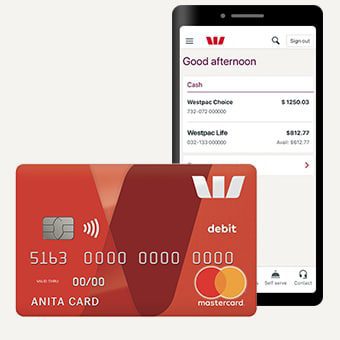
For consumers who want to go paperless, Westpac’s digital banking options include mobile and internet banking. You may see account balances, pay bills, transfer money, apply for loans and make purchases while on the go.
Online and mobile banking services from Westpac allow you to manage your finances at any time and from anywhere. With Westpac Online Banking or the Westpac App, you can easily manage your Tax File Number. It’s easy to stay up to current on your account information, make deposits and catch fraudulent activity on your mobile phone or PC, or laptop while at home. You can use a credit card to pay your utility bills, such as power, phone, and gas.
If your credit or debit cards are lost or stolen, you don’t have to contact your bank. To report lost or stolen cards, activate and put a misplaced card on hold, and request for replacement of the cards online, no one has the extra option.
Rural communities have benefited from digital banking. Performing the most basic of banking activities may now be accomplished with just a click of a button, saving them time and money that they would have otherwise spent driving considerable distances. Owners of online banking accounts can use their login credentials to access the following services from a computer, a smartphone, or a mobile banking app:
Westpac Digital Banking
Westpac bank Digital Banking Features
With the overhaul of Westpac bank’s mobile app and online banking, the client experience has been enhanced in numerous ways, including the following:
View your balances, transactions, and statements
Pay your credit card bills via Bill Pay
Go paperless with Bill Pay and eStatements
Transfer funds between your accounts or to outside accounts
Set banking alerts or limits
Apply for loans
Update your contact details
How to register for Westpac Online Banking
Ensure you have your card number, Customer ID, and account details before beginning the Westpac Online Banking application; however, you can find your Customer ID near the top of your bank statement.
If you have forgotten your old password, you will need to generate a new one. To do so, you’ll need:
Your Customer ID
Date of birth
The mobile registered for Westpac Protect
Reset your Westpac password In Online Banking
To reset your password using Westpac online baking, kindly Go to Service > Preferences > Security
Select Change password
Enter the Old password and create a new password
Re-enter the new password
Select Submit
How to enroll for Westpac Mobile Banking
Before you can download the Westpac mobile app from Playstore or IOS, you need your card number, Customer ID, and account information in order to register or enroll for the app.
Download the app and click on Existing customer
Click on Register for Online Banking
Input your Customer ID or card number, name, and date of birth
Provide security questions and answers
Create a password
Confirm your email and phone number
Forgotten your password?
Whenever you forget your mobile app password, you can reset it
By clicking on Forgot customer ID or password on the sign-in screen
Click on Forgot password
Input your Customer ID and Date of birth and tap Next
Enter the SMS code sent to your registered mobile
Create and re-enter your new password and tap Next
Once signed in, you can change your password from the Smart Search bar
How do I update my contact details
To update your email address, mobile phone number, and address on Westpac Bank, you will need to register for Westpac Protect so that you may receive an SMS code and verify that it’s you in order to keep your accounts secure… You can update your details via the Westpac mobile app or online banking.
In the Westpac App
To use the mobile app for information updates kindly Search Update contact details in the Smart Search bar.
Edit, add or delete the address, phone number, or email
In Online Banking
Following the instructions below, you can also use online banking to update your personal information with Westpac Bank.
Go to Services > Preferences > Personal details
Select Personal and Contact Details
Enter the SMS code sent to your registered mobile and select Authorize
Edit, Add or Delete the address, phone number, or email
Conclusion:
With Westpac Online Banking, you may pay anyone 24 hours a day, 7 days a week, make Payments, BPAY, and transfer funds both locally and internationally.
As a direct response to the plight of young people in Nigeria, the Federal Government has sped up the process of disbursing funds from the Nigeria Youth Investment Fund (NYIF Loan) to those who have most recently been approved for the Loan Scheme.
One of the steps that it has taken is to increase the number of banks that are responsible for distributing the NYIF Loan to the most recent 25,000 grantees.
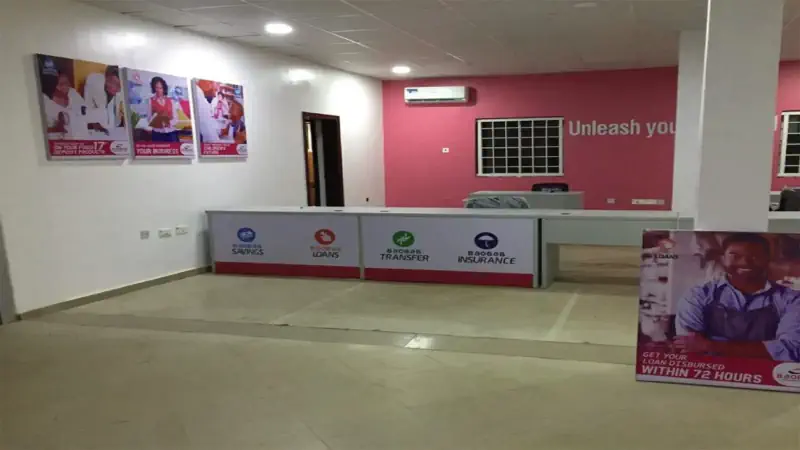
NPF Microfinance Bank, Lapo Microfinance Bank, and Baobab Microfinance Bank are the three financial institutions that are currently distributing funds from the NYIF Loan. Nirsal Microfinance Bank was the first institution to do so.
The Baobab Microfinance has announced that it is prepared to disburse the loan to beneficiaries in the South East. This announcement is in accordance with the efforts being made by the Federal Government to alleviate the difficult economic slump among the younger generation through the disbursement of the NYIF Loan across the States of the Federation.
In a statement that was distributed today, the Baobab Microfinance Bank encouraged recent users of NYIF Loans in the South East region to get ready, as Baobab MFB offices will soon be opening in the region to disburse NYIF Loans. The note was included in an email that was also distributed today.
According to Baobab MFB, the shortlisted NYIF Loan beneficiaries in the area should have filled out the online form that was provided to them with their essential details in order to expedite the process of opening an account. These individuals should have received a text message and/or mail from the bank.
Baobab MFB wrote:
“Nigerian Youth Investment Fund (NYIF)
“UPDATED INFORMATION
Are you an NYIF beneficiary and reside in the South-East & South-South States? Kindly note that a Baobab Centre will be available within your Region / State very soon.
You are expected to have filled out the online form sent via SMS/ Email with your relevant details as this will ease the process of account opening.
If you did not receive the online link to open your account, kindly reach out to our contact centre or email us.
Please note, that when your Baobab account is opened, you will get a notification on when to visit the designated centre within your Region / State to sign your Loan offer letter.
Beneficiaries from other regions and states will also be advised accordingly.
The NYIF Loan, as it is more commonly known, is a soft loan ranging from N250,000 to N3,000,000 that is repayable over three years at an interest rate of 5% with a moratorium of one year, with the intention of increasing youth productivity through the provision of training and investment in youth-based businesses.
Looking for ways to Activate techronadvantagecard.com? Read on to find out more.
Synchrony Bank, also known as Synchrony Financial, is one of the best customer banks in the United States. It is known for offering a wide range of products. Among the many services and products it offers, credit cards stand out because of how safe they are.
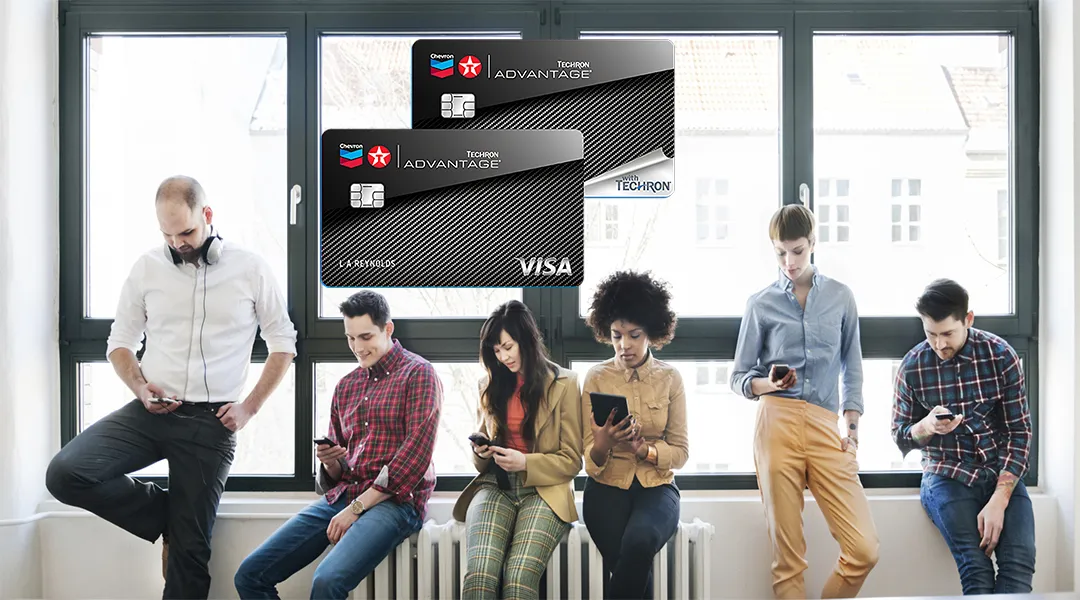
Almost all of the cards that Synchrony Bank gives out have the highest le12vel of security. Your new Techron Advantage Card doesn’t do anything different in this case. If you just got a card and want to use it, you really need to activate it at techronadvantagecard.com/activate.
There are many benefits to the Techron Advantage Visa Cards. Techron Advantage cardholders will enjoy getting limits and rewards when they use their cards in the right places. If you use the card at the pump, you’ll get fuel credits and other deals. To get a Techron Advantage card, all you have to do is show that your FICO score is at least 620.
The Techron Advantage works on all iOS devices with an OS of 6+ or later. It doesn’t work with iPads or Apple Macs right now. We are working on supporting these products in the future, but we don’t know when that will be.
It also doesn’t work with Android tablets in general, only smartphones. The only exception is that it won’t work on Samsung Galaxy S5 tablets made by Verizon. This is because Verizon uses the same CDMA technology as Sprint.
Head to techronadvantagecard.com activate to Start utilizing Your Card
You already have the card and are getting ready to use it so that you can get the most out of it. You should have your Account Number, SSN, Security Code, and other important details ready when you go to the approved page on your PC.
Open techronadvantagecard.com/activate.
Whenever provoked, give data identified with your card.
Enter Name.
Enter the Account Number.
Last 4 digits of your Social Security Number.
Enter a three-digit Security Code.
Enter your Birth Date – MM/DD/YYYY
Press on the “Activate” button.
The system will check the subtleties that you recently entered.
It will pause for a minute. Once confirmed, you will see a success message.
This guarantees that your Techron Advantage card is enacted now.
Since you’ve activated your card, nothing can stop you from buying things.
Did you run into some blunder? Or maybe you couldn’t get to the web-based activation page? No concerns! You can always ask for help from the financial faculty.
Why not look at the phone administration number to start the Techron Advantage card before you call the number and talk to a real expert about your question?
To use your Techron Advantage VISA Mastercard, call 1-866-448-5702.
To use your Techron Advantage VISA Mastercard, call 1-866-448-5702.
Use these phone numbers to contact customer service if you can’t get to the official page.
If you don’t get to both of the activation methods, you can usually get in touch with experts through the help page. The button to call for help can be found on the site for the authority. This option will be listed under “Call Us.” The authorized staff will answer your question, which will help you enjoy shopping with your Visa.
What else? You might also want to look in the FAQs section to find the right answer for your needs. If you tap on the right button, like Reach Us, you can get in touch with the financial staff.
We sent you a card because you’re interested in using our products. We are happy to be able to help customers like you, which is why we do what we do.
What data should I enter on the site?
You need to put your name and account number on the first screen of the Techron Advantage card activation page. You must also enter a three-digit security code and your date of birth in the format MM/DD/YYYY.
What will occur when I click the ‘Activate’ catch?
Your information will be checked when you tap the “Activate” button. Your three-digit security code and date of birth were checked during the last check.
Why is it vital to enter the data you request me to enter?
If your date doesn’t match, you might not get the result you want when you try to use your card. The main reason we need you to give us this information is so we can make sure we are talking to a real candidate before we try to change their record.
Why did I just get a popup cautioning me about giving my social security number? Why should I tap ‘Yes’?
Please be careful when you enter your Social Security Number on the site. We need this number because it lets us finish your request. This phone number is only used for this one purpose, and we keep it safe.
Why do you require my date of birth?
We ask you for your date of birth so that we can make sure you are the person whose record and card number you put on the site before we make any changes to your record or card.
How would I know it’s worked? Does my phone work yet?
As soon as you tap to activate, you’ll see a message that says “We’re working on it.” When your request is being processed, which should be within 60 minutes, you should get a message telling you so. This message will go away, and your phone should work again after a while.
My phone isn’t working – what do I do?
Call us at 1-855-328-7655 and we will endeavor to figure out the issue. It may be for one of a few reasons:
1) You need to reestablish your telephone connection; or, 2) You entered your message incorrectly; or, 3) We are working hard to get it done quickly! Try again in a few minutes. As with all technology, if you don’t see activity on your phone right away, you should give it some more time. Remember that processing can take up to an hour. If you’ve done all of these things and still can’t use our services right away, feel free to give us a call.
If I don’t have a mobile device or service plan, can I still sign up for Techron Advantage?
No, I’m afraid not. This rule does not have any exceptions. The point of this policy is easy to understand: if you can’t get online, you can’t use all these great benefits.
Why do I need an email address to create an account? What if I don’t want one?
The main reason we ask you for your email address is in case we need to get in touch with you in the future about your request.
For people who are new to prepaid wireless, the Techron Advantage is a great card. It works with both Android and iOS devices and has a very reasonable price compared to other prepaid providers. It runs on the Sprint network.
People who know a lot about technology and use a lot of data might find that contracts that charge by the gigabyte instead of by the number of minutes or texts used are a better deal. However, if you want something simple and cheap, the NewTechRn advantage is a great choice.
Some users have had trouble activating their accounts, and after they signed up, apps like Netflix did not work as expected. But many other people haven’t had any problems, so this seems more like a problem with one person than with the Techron Advantage plan as a whole. If you can get past these small problems (and the fact that there’s no freebie! ), it’s well worth your time.
Access Bank Plc is a commercial banking institution that has been doing business in Nigeria for more than 37 years. It has service outlets and a network of over 371 branches located in major centers across the country, as well as in sub-Saharan Africa, the United Kingdom, Asia, and the Middle East. Access Bank PLC is designed to make life easier for its customers by expanding its banking operations in order to make banking easier for both its customers and other customers. This is accomplished by introducing numerous methods of banking, such as internet banking, mobile USSD banking, mobile apps, and many others, through which you can complete major banking transactions without having to visit an Access Bank branch.
How to Register an Access Bank Account
STEP1: Click hereto Visit the Access Bank PLC internet banking platform
STEP2: On the Internet Banking homepage, click “Register”
STEP3: On the page for registering, you will need to fill in the essential fields with the appropriate information.
STEP4: You will receive a verification code at both the phone number you registered with and the email address you provided.
STEP5: After receiving the Authentication code you will be asked to choose your User ID, password, and your secure image that will be used for subsequent logins.
STEP6: You need to Accept the necessary terms and conditions and then submit to complete your registration.
How to login to Access Bank Account Online Banking
Visit the Access Bank PLC Internet Banking platform.
Click on the Login tab.
Enter your Username.
Enter the default password that was sent to you earlier in order to log in.
Click on Login.
NOTE: You are required to make a note of the fact that once you have successfully logged in, you will be required to change the default password to a new (personal) password. I will instruct you on how to successfully change your password, so pay attention.
Enter your User ID and the default password that was emailed to you earlier in order to successfully log in to your account.
After you have successfully logged in, you will be brought to the homepage of your Online Banking account. On this page, you will need to locate the user preference option, which can be found on the right-hand tab of the options that are presented to you, and then click on it.
When you select “User Preferences” from the menu, you will be presented with two choices.
You need to select the “Change Password” option from the two available choices.
You will be prompted to enter your previous password as well as your new password. In addition, you will be required to choose a combination of letters, numbers, and special characters.
In addition to this, you will design your own one-of-a-kind Stamp by picking an image and coming up with a memorable word or phrase.
After you have finished doing that, you will need to click on the submit button and then confirm all of the information that was provided earlier. After that, you will need to click on proceed, and then congratulations, you will have successfully changed your password.
Checking your Chase Bank account balance doesn’t have to be complicated. The good news is that Chase Bank has made it so simple for anyone to check their account balance on their smartphone quickly. For example, you can see your account number even when you don’t have access to the internet via a feature phone.
You don’t even have to make a phone call to get your account number. A texting-capable phone or tablet is all you need. To obtain your account balance, please send a text message to Chase at (844) 24273.
Of course, if you currently use the Chase mobile banking app or better yet, log in to their online banking platform, you already know how simple it is to access your account balance.
If you still have any further inquiries, you can contact Chase Bank via a phone number and have your problem Solved.
Stanbic IBTC Get Quick Loan lets you borrow money for emergencies and other short-term needs so you can do what you want, when you want. The loan includes Unsecured Personal School Fees Loan, Home Loan, Vehicle and Asset Finance, Smart Loan, Secured Term Loans, Unsecured Loans, and Salary Advance.
We’ll explain the different types of Stanbic IBTC quick loans so you can choose the one that best fits your needs, requirements, and how to apply.
1. Stanbic IBTC Unsecured Loans
This is a medium- to long-term loan that gives you access to money for personal needs like buying household items, paying for school, fixing up your car, paying rent, etc.
To get an unsecured personal loan, you must have been working for the same company for at least six months.
You Must be 21 years or older (but not older than 60 years on the expiration of the facility).
You should earn a minimum net monthly income of N20 000.
You must have a satisfactory credit bureau report.
Your salary must be paid into a Stanbic IBTC Bank account
You have to be a Nigerian citizen with permanent residency.
You need to be permanently employed or be a contract worker at an approved company with valid contract terms.
2. Stanbic IBTC Unsecured Personal School Fees Loan
This kind of credit facility is made for parents and guardians who need money to pay school fees for their children or wards in any level of Nigeria’s education system.
There are no collateral requirements for the loan. You can make the loan last longer (that is 12 months tenor to be rolled over year for five years). Credit is given to both local and international people. As the loan amount, you can get the exact amount that the school charged you.
What documents are required
To apply for a Stanbic IBTC Unsecured Personal School Fees Loan, you must provide the following documents:
Letter of Introduction and Salary Domiciliation from Employer
Immediate past three months’ pay slips.
Six months’ salary account statement (new customers).
Valid means of ID or Staff ID.
Invoice from the school indicating the tuition, accommodation, and upkeep fees
To apply for any Stanbic IBTC quick loan kindly visit any branch closest to you.
3. Stanbic IBTC bank Home loan
This type of Stanbic IBTC Home loan is available to business owners and salaried people, and you can choose to make payments monthly, quarterly, biannually, or annually. It lets you buy a finished residential unit. The minimum loan amount is NGN 3,000,000, and you can pay it back over a maximum of 20 years if you make at least NGN 200,000 a month.
You should buy an off-the-plan unit from one of the bank’s approved developers and buy properties in a number of different places.
Requirements to apply for Stanbic IBTC bank Home loan
Before you can apply for a home loan from Stanbic IBTC Bank, you have to show the following documents:
Recent 6 months’ bank statements with evidence of salary payment.
Completed Home Loan application form
You must provide an Offer letter for sale from the vendor.
Provide a Copy of the company (work) ID card.
Copy of valid photo identification (Int’l passport and driver’s license).
Letter of introduction from employer (stating salary and confirmation status).
A copy of the title documents to the property.
Valuation report from any of the Bank’s approved valuer.
Satisfactory search report.
Recent three months’ pay slips.
4. Stanbic IBTC Smart Loan
The Stanbic IBTC Smart Loan can be accessed through the Stanbic IBTC Mobile App without any paperwork, and you can get up to N10M if you have mutual funds investments with Stanbic IBTC Asset Management, a subsidiary of Stanbic IBTC Holdings, with a maximum term of 48 months.
Requirements to Apply for Stanbic IBTC Smart Loan
To apply for Stanbic IBTC Smart Loan, you must provide the following documents:
Three months pay slips from the employer or other proof of regular source of income
Bank statements that support cashflow
Your salary must be paid into a current account with Stanbic IBTC Bank
Satisfactory credit bureau report
5. Stanbic IBTC Bank Vehicle and Asset Finance
Stanbic IBTC Bank’s Vehicle and Asset Finance is for both salaried and non-salaried customers who want to buy things like cars and power generators. The loan has flexible payment terms, and you can pay it back over up to 4 years. You also get access to a large dealer and partner network to help you find a car.
Offerings are:
Vehicles both new and used but with a maximum loan limit of N15m and tenor of 48 months
Inverter and Solar Solution Maximum loan limit of N5M and Tenor of 18 months.
Generator maximum loan limit of N7m and tenor is 36 months.
No initial contribution. 100% financing.
Maximum TAT of 24hrs from submission of complete documentation.
Other important features are
General Combo financing.
Management fee
Insurance cover the entire duration of the loan.
Asset Insurance cover. For any accident and damage to the assets financed
Life insurance cover job loss, permanent disability, and death only,
How to Apply
To apply for Stanbic IBTC Bank Vehicle and Asset Finance kindly follow the steps below:
A completed application form
Proof of income/evidence of salary
A proforma invoice for your vehicle or asset of choice (preferably from a Stanbic IBTC partner dealer)
The Stanbic IBTC bank Salary Advance is made for people who get a salary and have their salary account at the bank. You can borrow as little as N20,000, and you can choose to roll over your loan and use the money you’ve already paid back.
For this type of loan, you must be at least 21 years old and make at least N40,000 per month (but not older than 60 years when the facility would end). If you are a contract worker, you must have a valid contract with a company that has been approved. Also, you have to have worked for the company for at least six months.
How to apply
The account that your salary is paid into must be with us
You must earn at least N40,000 per month and must have
Minimum loan amount of N20,000.
You must have been with your employer for at least six months.
You must be 21 years or older (but not older than 60 years when the facility would end).
In the case of a contract worker, you need to be contracted to an approved company and must have valid contract terms.
You can choose to revolve your loan and re-use the re-paid amount
You can renew your revolving salary loan amount after
You can get Stanbic IBTC salary advance by:
Visiting your nearest Stanbic IBTC Branch
Calling 01 422 2222
or emailing [email protected]
Are you are business owner? Is your business or household affected by lockdowns brought about by the lethal Covid19 pandemic? If your answer is ‘yes’, you can fill out a Covid-19 Loan Support Form to get funds from the federal government, through the Central Bank of Nigeria (CBN).
Requirements to get Covid-19 Loan Support in Nigeria
Once the form page opens, select the reason for the loan application, then submit.
There are different types of Covid19 loans
Households: their livelihood are negatively impacted.
Microenterprises: Existing Enterprises affected by the pandemic.
SMEs: Enterprises that want to take advantage of opportunities arising from Covid19.
After completing the loan application, it will display “Thank you! Your application has been summited successfully“.
Then after some days, you will get the notification that your application for the loan has been approved. If you have a question, kindly go to the comment section below.
UBA Personal loans assist UBA Salary Account holders with Savings and Current to pay for unexpected needs, such as medical bills, and make home upgrades. Upon receipt of the relevant papers, the UBA Personal Loan facility requires approximately 48 hours for loan disbursement following a request for a personal loan.
Borrowers can take advantage of a flexible loan duration of up to 60 months. The loan amount ranges from N100,000 to N30 million, based on your earnings and other stipulations. The interest rate is as low as 20%, and there is a one-time management fee of 1%, granting you access to up to 50% of your debt service ratio (DSR).
How do I know if I am eligible for a loan?
To qualify for a UBA Personal loan, the following requirements must be met:
You must be a verified member of your organization’s personnel.
You are required to have a UBA Salary Account.
Your employer must be on the list of approved Personal Loan organizations.
What documents am I required to provide to obtain a UBA Personal Loan
To qualify for the UBA Personal Loan, you must present the following documentation:
A duly completed Loan Application Form.
A copy of your pay slip and bank statement of account indicating salary inflows in the last 6 months.
A letter of awareness from your current employer.
UBA Personal Loans Requirements
Before you can apply for a personal loan from UBA, you must present the following papers.
Functional savings or current salary account
Duly completed loan application form.
Valid means of Identification (international passport, national driver’s license, national id card, and voters card).
Employer’s undertaking to domicile salary with UBA.
Duly accepted offer letter or employee inquiry form (The offer letter should contain
Employee Name, Employee Job Description/Position; Nature of Employment (Permanent or Contract); Employee Job Status (Confirmed or unconfirmed).
Copy of the obligor’s staff ID.
How to apply for UBA Personal Loans
You can quickly apply for a personal loan from UBA Bank by using the dedicated lending site “Integrated Credit Express (ICE)” or by visiting one of our Business Offices. Additionally, you may contact your Relationship Manager for assistance.
Submit a completed loan application form with supporting documents at any branch
Execute an offer letter detailing the loan terms and requirements, following loan approval
Loan will be disbursed into a salary account domiciled with the Bank.
Upon receipt of the relevant papers, the UBA Personal Loan facility requires approximately 48 hours for loan disbursement following a request for a personal loan.