USAA, a prominent Fortune 500 financial services group, offers a wide range of insurance, banking, and investment services to current and former members of the United States Armed Forces. As part of their offerings, USAA provides credit and debit card services to their customers. If you’ve recently received your USAA debit or credit card and need to activate it, you can conveniently do so through their mobile app or via their website, usaa.com/activate. Below, we provide detailed step-by-step instructions for both activation methods.
Activate Your USAA Card Online at usaa.com/activate
Open a web browser on your computer and navigate to usaa.com/activate, the USAA activation page.
Enter your Online ID and click “Next.”
Provide your password to log into your USAA account.
Once logged in, locate and select the “Activate Card” link.
On the next screen, enter your card details (card number, expiry date, security code) as well as your personal information (name, date of birth, social security number).
Follow the onscreen prompts to complete the activation process for your USAA card.
Activate Your USAA Card via Phone App
If you prefer to activate your USAA credit card through a phone call, you can contact USAA at 800-411-4300. Dial this number and follow the on-call prompts to activate your USAA credit card efficiently.
To activate your USAA ATM/Debit card, use the following phone number: 800-315-4906. Call the number and carefully follow the instructions provided during the call to complete the activation process for your ATM/Debit card.
activate your usaa card
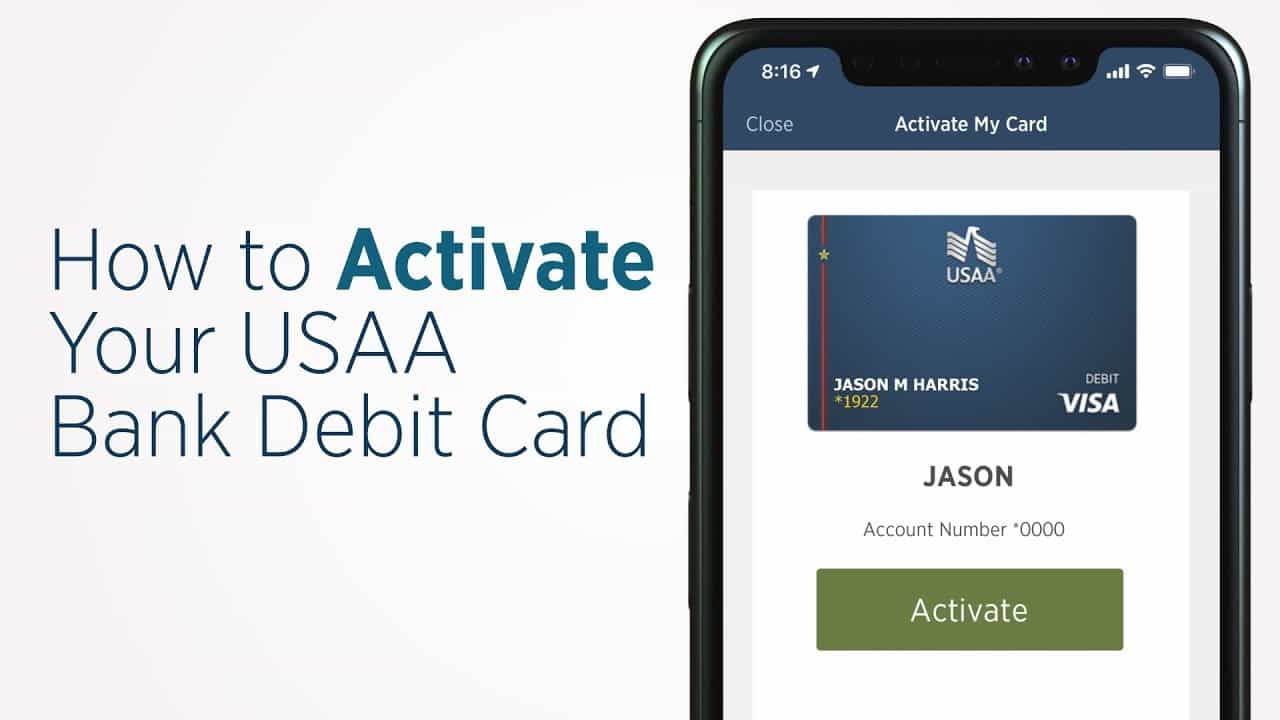
Activate Your USAA Bank Card Using the Mobile App
Install the USAA mobile app on your mobile device (available for iOS and Android).
Launch the app and sign in using your USAA account credentials.
Once logged in, locate and select the Menu option from the top-right corner of the app interface.
From the Menu section, choose the ATM/Debit Card option.
On the next screen, tap on the “Activate Debit Card” option.
Finally, tap the Activate button to complete the process.
A confirmation message stating “Your Card is Now Active” will be displayed on your screen.
Activate Your USAA Debit Card at an ATM
If you encounter any issues while attempting to activate your USAA ATM/Debit card using the methods mentioned above, you can opt to activate your card at an ATM. Simply perform a transaction using your card’s PIN at any USAA-partnered ATMs, and your card will be successfully activated.
- Advertisement -
Watch the video tutorial on how to Activate Your USAA Card below:
Frequently Asked Questions
What should I do if I forget my USAA account username or password?
If you forget your username or password for your USAA account, visit usaa.com/activate on your web browser. Click on the “I need help logging on” option and follow the subsequent instructions to recover your Online ID, reset your password, or register for digital access. Once you have successfully retrieved your login credentials, you can proceed with activating your USAA debit/credit card.
Is it necessary to activate a USAA credit or ATM/Debit card?
Yes, it is crucial to activate your USAA credit or ATM/Debit card, particularly if it comes with an activation sticker attached.
When can I start using my USAA card after activating it?
You can begin using your USAA Credit or ATM/Debit card immediately after the activation process is complete.
How long does it take to receive my USAA Credit or ATM/Debit Card in the mail?
Typically, it takes approximately 7 to 10 business days for your USAA card to arrive by mail. However, if you are located overseas, the delivery time may extend to 21 business days. To check the estimated arrival date of your card, you can visit the following link: https://www.usaa.com/my/card-order-status/.
What is the customer care phone number for USAA?
If you require assistance from USAA’s customer support, you can reach them at 210-531-USAA (8722) or 800-531-USAA (8722). They will be able to address any queries or concerns you may have regarding your USAA card or account.
In conclusion, activating your USAA debit card is a straightforward process that can be done conveniently through the USAA mobile app, their website at usaa.com/activate, or via phone call. Choose the method that suits you best and follow the provided instructions to activate your card successfully. If you encounter any difficulties, don’t hesitate to reach out to USAA’s customer support for assistance. Once your card is activated, you can start enjoying the benefits and convenience of using your USAA debit card for various transactions and purchases.
Step-by-step instructions for applying for a credit card online with Navy Federal: The answers to its requirements, eligibility requirements, and other queries have been thoroughly discussed in today’s article, which is about how to apply for a Navy Federal credit card online.
Navy Federal Credit Union
The Navy Federal Credit Union is a member-owned cooperative that is administered by the National Credit Union Administration (NCUA). This Navy federal membership is only given out to a select few individuals and is comprised of different units from both the United States and the Department of Defense.
How to apply for a Navy Federal credit card
Follow the step-by-step guide on applying for a Navy Federal Credit Card.
Step 2. After that, click on “View Our Cards.” Which will be visible in the first step.
Step 3. Scroll down on the new page to learn about its different cards. And click on the “Card Detail” tab to read about the card thoroughly. And then click on the “Apply Tab” to apply.
Step 4: After gathering the card details, proceed to the next step by selecting the “Apply now” option next to the credit card you wish to apply for.
Step 5: After that, you will be sent to the page where you can sign in. In this space, you are required to enter your “username” and “password.” After that, select the Login option.
Step 6. After login, complete the further easy process for the Navy federal credit card.
Note: You will not be able to access the site without first clicking the “Become a Member” button if you do not already have an account. And sign up for an account with Navy Federal by carrying out these four procedures in their entirety.
Eligibility
Membership
Finish Setup
Credit Card Application
Step 7: After completing this process, click “Agree.”
They will now complete the application process and return the credit card to you within 5 business days.
Navy Federal Credit Card Requirements
You need to have a credit score of 660 or higher for the credit card.
Your address must be in the United States.
You must provide your SSN (Social Security Number) or ITIN (Personal Tax Identification Number).
The minimum age of a person should be 18 years to get the card and 21 years to pay.
Proof of your income, such as monthly rent, annual income, and mortgage payment will also have to be added.
Verification of credit score and income level is done by the Navy
Who is Eligible for a Credit Card?
The eligibility conditions for the Navy Federal Credit Card can be viewed on the official website of the card as well as on this page.
- Advertisement -
Active Duty, Retired & Veterans – Active duty members of the Army, Marine Corps, Navy, Air Force, Coast Guard, National Guard, and Space Force, as well as Delayed Entry Program (DEP) participants, Department of Defense Officer Candidate/ROTC participants, Department of Defense Reservists, veterans, retirees, and annuitants, are all eligible.
Family Members – Parents, grandparents, spouses, siblings, children (including adopted and stepchildren), grandchildren, and great-grandchildren Household members are eligible.
Department of Defense Civilians – DoD civilian personnel support the armed forces.
How to Prequalify for a Navy Federal Card?
Here one can check the navy federal pre-qualification credit card. For this
Visit your website, and scroll down to check “Do You Prequalify?” Prequalify by pressing Tab.
Sign in by entering your username and password.
Now press the submit button to find out whether you are eligible to apply for it.
Navy federal credit card customer service
To talk to a real person 24×7, you can easily call on this number.
1-888-842-6328
International: 1-703-255-8837 (collect)
Business Solutions
1-877-418-1462 (Representatives are available Monday through Friday, 9 am to 5 pm, ET.)
Collections
1-800-336-3767 (Speak to a collections specialist Monday through Friday, 8 am to 9 pm, ET.)
Can I apply for a Navy Federal credit card online?
Yes, you can apply for a navy federal credit card online from its official website -https://www.navyfederal.org/. Before applying, you must read the Eligibility criteria and its requirements. you can follow the above steps.
How long does it take to get a Navy Federal Credit card?
Getting a Navy Federal Credit card may take 7 to 10 days. You can check your card in the mail to track it or within 7 to 10 days of your approval. And you’ll also find out what terms you’re approved for, like interest rates and spending limits.
How do I qualify for a Navy Federal credit card?
To become eligible for NFCU, you must be a veteran, have a current relationship with the Armed Forces, the National Guard, or the Department of Defense, or have an immediate family member with Navy Federal membership.
- Advertisement -
Is it hard to get a credit card from navy federal?
Navy federal credit card approval requirements include a credit score of at least 700 in most cases, which is considered particularly good credit. another Navy Federal credit card required a 750 credit score. However, Navy Federal also offers options for those with bad credit.
Want to know more about kohls.com activate guide? Read on to find out more.
With the Kohl’s card, you can save money on all of your favorite clothes and accessories. It also gives Kohl’s credit card holders special benefits, such as discounts, rewards points, and early access to new items. But how do you get your Kohl’s card to work? If you follow our step-by-step guide, it can be easy!
When people finish reading this post, they will know: How to use your Kohl’s card, what Rewards Points are, and how Early Access works.
This blog post is best for people who want to learn how to use their Kohl’s cards for the first time or who want to find out more about what rewards points are.
Quick Guide to Activate Kohl’s Charge Card at kohls.com/activate
Make sure you’re on the Kohls.com website.
Click the link near the top of the page that says “Apply for Credit” or “Sign in to your existing account.”
If you don’t already have a Kohls account, make one by filling out all the information needed to sign up on their website. (Note: Your card won’t work until you spend at least $5.)
Sign in, then click “My Account” and then “Use Rewards Points.” 5. Enter either your 16-digit card number OR your 8-digit order number. You can find this near the top of your receipt within 45 days of your purchase, right next to your credit card number. 6. Click “Apply Points” to use your rewards points for this purchase.
Voilà! Your Kohl’s card is now good to go!
Right now, you can use your Rewards Points or get a code for early access to new items on Kohls’ website before they go on sale in stores. If you want to learn more about these two things, read the last sentence of this blog post.
Kohls Activate
Rewards Points
Applying for a Kohl’s Charge Credit Card ($45 annual fee) is the fastest way to earn rewards points. Cardholders get special deals and discounts just for having the card, like getting 1 percent back on every dollar spent at Kohl’s or other participating stores.
Rewards points can be redeemed for discounts on future purchases, exclusive coupons, and early access to new arrivals at Kohls.com before they are available in stores – just another way to save!
- Advertisement -
To use your rewards points online at Kohl’s, click the “Use Rewards Points” link next to “Your Account” near the top of the homepage. If you get 100 points, you get $5 off your purchase. One point is worth one cent.
You can also use your rewards points to get a percent-off coupon with no minimum purchase required. For example, 100 points will get you 25% off, 200 points will get you 30% off, and 350 points will get you 35% off (300 pts.). Note that you can’t turn rewards points into cash or use them with other discounts.
Early Access to New Arrivals at Kohls.com
Customers with Kohl’s cards can buy new items online before they are sold in stores. Go to Kohl’s website and click on “Shop Now” under “Deals & Coupons” to see the latest deals. “Enter your email address or sign up now” will show up in a drop-down menu.
Click on the black box below the line of text that says “Sign up with your email address.” Then type your email address into the white box and click “Submit.”
- Advertisement -
Once you’ve signed up, you’ll get an email with the deal of the day, which could be a coupon or sale for $10 or more off a $50 or more purchase. At Kohls.com, you can only shop in the “New Arrivals” section twice a week.
Rewards Points vs Early Access Codes
You may have seen in our quick guide that when you click “Apply Points” to use your rewards points, it says “Use Rewards Points.”
When it comes to early access codes for new arrivals on Kohls’ website, things are different because there is an extra step where you have to either sign up or put in your email address to get this special deal. Most of the time, these codes are added to your account in less than a week after you get your card.
Please share this with anyone you think could use the information in this article. If you have any questions about Kohl’s Charge Cards, Rewards Points, or Early Access Codes for New Arrivals at Kohls’ website, feel free to leave a comment below. We’ll get back to you as soon as possible! Thank you, and good luck with saving!
What Do I Do If I Forgot Kohl’s Charge Account Username or Password?
If you can’t remember the username for your Kohl’s Charge account, you can get it back by clicking the “Forgot Username” link near the top of the page. Click “Reset Password” if you can’t remember your password.
- Advertisement -
Then, enter either your 16-digit card number OR your eight-digit order number (which can be found right below your credit card on your receipt) into the “current” or “previous” boxes to get a temporary Reset Password email.
To confirm this information, type this email into the “Current Email Address” box and choose whether you’re an existing customer or a new one. Check your inbox for an email with a temporary password once you’ve sent in the form.
Put this in the “password” box and click “Submit.” If it works, you’ll get an email telling you that your account has been changed.
Forgot Kohl’s Charge Account Username or Password – How-To Reset
Please share this with anyone you think could use the information in this article. Leave a comment below if you have any questions about Kohl’s Charge Cards or if you forgot your username or password for your Kohl’s Charge account. We’ll get back to you as soon as possible! Thank you, and good luck with saving!
My Kohl’s Card Is Being Declined – What To Do?
If your Kohl’s card gets turned down when you try to shop online, this could be caused by a number of things. If you’re shopping at kohls.com and get a message saying you’re “not authorized to make this purchase,” it’s probably because your card information wasn’t entered correctly.
- Advertisement -
If the computer gave you the wrong Zip Code, try 000 (zero zeros) or 111 instead (one one one).
If none of these tricks work, there may be a problem with your card, such as:
Cardholder information isn’t shown on Kohl’s charge payment page for Mastercard customers: If you signed up for a Kohl’s Charge account but didn’t add your address before you paid for anything, your name might not show up on the payment page. To fix this, give a street address when you pay for your Kohl’s Charge purchases under “Billing Information.”
You can also add your name to the account by logging into your Kohl’s account and going to “My Account” in the top right corner of the page. You’ll find a field on this page where you can add a holding name. When you add this information, it will show up on every purchase you make with your Kohl’s card.
Cardholder information isn’t shown on Kohl’s bill-paying page if you use American Express. If you signed up for a Kohl’s Charge account with an American Express card but didn’t add your address before making a payment, your name might not show up on the payment page.
To fix this, add your billing address to your account profile before you make any online purchases with your Kohl’s Charge card.
If none of these solutions work, you can call Kohl’s customer service at 1-877-887-8884 or use their live chat to get help finishing your order. If you have an American Express card, you can also try calling American Express at 1-800-528-4800.
- Advertisement -
They might be able to help you get past this screen so that you can finish buying what you want. For all other cards, you might want to call your credit card company to see if there is a problem with the account.
How to Activate Kohl’s Card via Phone Number?
By calling the phone number, you can activate your Kohl’s card in a way that is very similar to how you would activate your card in person. If you haven’t activated your Kohl’s Charge yet, call your credit card company’s customer service.
Give them your 16-digit card number or 8-digit order number, which can be found right below your credit card on your receipt and near the top of your receipt 45 days after your purchase. Once they are sure they are talking to the account owner, they will ask for more information, such as:
Your billing ZIP code
The last four digits of your social security number
A personal identification number (PIN) that would be associated with all future transactions using this account.
When it comes to the PIN, just choose a number that you will be able to remember and is unique.
Why Kohl’s Charge Card Is Declined When Making Online Purchases?
When you shop online at Kohl’s and your card is turned down, it means that there is something wrong with the information you gave when you filled out your order. Incorrect billing address information, which should be put in the “Billing Information” section, is the main cause of this problem.
- Advertisement -
Another reason could be that your credit card company flagged the transaction as strange or suspicious. Tell your credit card company about any strange activity on your account so you won’t have trouble paying for future purchases.
How to Check Status of Order?
Customers can check on the status of their orders at any time by going to Kohls.com and clicking the “Track Your Order” button in the top right corner. This will bring up your most recent order, which you can see by clicking “View Order Details” in the bottom left corner of the screen.
How to Find Kohl’s Store Near Me?
On their online store locator, you can find a list of all the Kohl’s stores in the United States. Customers can use either an address or a postal code to look for stores near certain states or cities. If you need help finding a location near you, you can also call 1-800-991-8708 from your phone.
What is SINGER22?
SINGER22 has discounts and deals that are only good for a few hours. These are usually posted on Wednesdays. Kohl’s SINGER22 page tells customers what they can expect when they go to the store next, which makes it easier for them to find all the best deals.
- Advertisement -
Why Is There No Credit Card Number on Receipt?
Most credit card companies have recently put out new security measures to protect their customers from fraud and other bad things that could happen with their cards.
The biggest change was that stores had to take off the 16-digit number from receipts. This was done so that your personal information wouldn’t be exposed if someone stole your receipt before you could turn it in or throw it away. Even though the number was cut off, you can be sure that your payment went through successfully.
Kohl’s
What Is A Kohl’s, Charge Card?
A Kohl’s charge card is like a credit card, except that you can spend as much as you want. It can be used to buy anything in their stores or online.
Most credit cards are given out by banks like Wells Fargo or Chase. Kohl’s charge cards, on the other hand, are given out directly by the store. This lets shoppers build their credit while still shopping at one of their favorite department stores without having to pay any interest.
- Advertisement -
Also, if you use a Kohl’s charge card, you are automatically enrolled in their rewards program. Every time you swipe your card at checkout, you earn points that you can use for discounts and savings in the future.
Conclusion – kohls.com Activate
If you tried to shop at Kohl’s and your card was turned down, don’t worry. It’s possible that the information was wrong or that the transaction set off some alarms at your credit issuer.
To keep this from happening again, you should keep all of your billing information up-to-date and double-check it before you place an order.
We hope that we’ve answered all of your questions about using a Kohl’s charge card and given you the steps you need to shop at Kohls.com successfully. If not, feel free to get in touch with us and leave a comment below. Thank you for reading, as always.
Are you trying to activate your credit card through Bank of America.com? Learn more by reading. If you have any more inquiries regarding the activation of a credit card issued by Bank of America, please feel free to contact us.
You can use CashPay to send money to other people who also have a CashPay account by sending it from your phone to theirs (Think PayPal but run by Bank of America). In addition to CashPay, the Wallet app allows for the storage of information pertaining to debit and credit cards. You can acquire additional information regarding it at the following location: https://promotions.bankofamerica.com/digitalbanking/mobilebanking/digitalwallets.
You will want to make sure that you upload your card or scan it in with the camera on your smartphone before attempting to add it to the Google Wallet application now that the products have been integrated into one.
You can activate cards by going to the app store on your device, downloading “Wallet,” selecting add a virtual wallet, selecting Bank of America from the list of institutions that allow load via NFC, and then entering your card information manually or scanning your card using the camera on your device. This will allow you to load money onto your card using the NFC technology.
How to Add Activate Bank of America.com Credit Card, Debit, and CashPay Cards on Google Wallet
Start the app known as Google Wallet.
Click the icon labeled Tools (It looks like an O with a circle around it). It can be found in the top right-hand corner of your screen, directly to the right of the icons for sending and canceling.
Click the Manage cards button. You can add credit, debit, or cash pay cards to your Google Wallet account here, as well as read information about those cards, such as credit limits and recent transactions. This is also where you can add cash pay cards.
Tap the Add a card from the Bank of America option that is located underneath the list of approved institutions that presently permit load via NFC tap virtual wallet. This will open a new window in which you can choose between using your credit card or your debit card.
- Advertisement -
To add a new payment method, select it by tapping either the Credit or Debit button. If you have either type of card, you only need to add it once to your account by selecting the debit or credit option. You will be presented with a window that will ask for the information on your physical card (The 16 digits on the front and your full name on the back of your physical card).
After providing the relevant information, select the Add Card option when finished. It ought to appear on your screen as if there are some green lines moving vertically across it, suggesting that it was successfully added to Google Wallet. After you have finished, tap the Done button; however, if you wish to add another card from Bank of America, you will need to repeat step 6 once more.
How to Transfer Money Using Google Wallet
You can send money from any of the email addresses associated with your Gmail account to any of the email addresses that Bank of America has on file for you.
Open the Google Wallet application.
You can contact customer service by tapping the person icon that is found in the bottom right corner of your screen next to the information about your cards and recent purchases. It consists of a head silhouette placed next to a white box that has a red arrow pointing out of it.
- Advertisement -
Select to send the money. A pop-up window will welcome you and ask you who you would want to email the money to after it has loaded. In the “To” field, enter their whole name or email address, and in the “Amount” field, enter the amount that you want to send them. Tap the Add a message option if you would like to include a personal note with your payment, and then tap the Next button after you are ready. If you don’t think this is necessary, all you need to do is touch the Send button without adding a note.
Click the Bank of America link located under Payment Methods. The button can be found near the bottom of the screen. If you have not utilized Google Wallet or Bank of America on that particular device before, you will be required to check in with your login and password in order to use either service.
After that, Google Wallet should prompt you to input the PIN number that is associated with all of your loaded debit cards. The convenience of using the same personal identification number (PIN) for both cards is preferred by the majority of consumers.
After that, you will be given the option to add an additional email address that is not currently associated with your Gmail account via Bank of America, or you can select Done. Tap “Add email” and carry out step 8 once more if you wish to send money to someone other than yourself. When sending money, the majority of people like to use multiple email addresses because it can become confusing if too many go into one account. If this is your preference as well, you are free to stop here after you have inputted the information. If this is not the case, hit the Next button located in the upper right-hand corner of your screen after providing all of the essential information.
- Advertisement -
Repeat entering your password and pressing the box that says “I agree with the terms and conditions” to reaffirm your payment. Google Wallet will notify you that the transaction has been completed successfully once everything has been checked out and found to be in order. Make sure you check your email for a confirmation from Bank of America once the payment has been sent to another account and received there.
After that, you may go back into Google Wallet and select the option with a green arrow that says Resend money if you want to resend the same payment again. Alternatively, you can amend it by selecting the option with a red arrow that says Edit next to it.
How to Add Money Using Cash with Google Wallet
If you have a Bank of America debit card, you can use Cash to add funds straight to your virtual wallet by visiting their website at https://cash.bankofamerica.com/GoogleWallet. This option is only available with Bank of America debit cards.
In the space designated for “Cardholder’s name,” type in your full name as it is printed on your actual card. Enter both names, separated by a comma, if the account is held jointly by more than one person.
- Advertisement -
Enter the 16-digit number that may be found on the back of your actual card, and then choose the Next button. In order to maintain a certain level of security, you might or might not see a star depending on whether or not you entered the correct numbers. Do not be frightened if you do not see a phishing scam as this is done to protect you from any scams that may be committed online.
Enter the final four digits of your Social Security number as they appear on the back of your physical card below the Card security code, and then select the Verify button. The same boxes will automatically fill out as they did before, and the final product will look like this: Cardholder’s name (How it appears on Bank of America) Card number with 16 digits The final four digits of the SSN
After you have successfully input all of the essential information, pick the Continue button. In order for you to verify the transaction, an email will be sent to the Gmail address associated with your account. You can also access it directly through the Bank of America website HERE. After entering your full name, as it appears on your physical card, along with your 16-digit card number, and then select the Login button, you will have access to it. Once you have logged in to that website, navigate to the Accounts section and pick My Wallet. After that, navigate to the Payment methods section and select Add funds using Google Wallet.
Choose debit from Bank of America from the list that is displayed on the left-hand sidebar of the services that are offered. It is a square with a red border that is blue on the outside and white text on the inside.
- Advertisement -
Benefits of Using Activate Bank of America.com Credit Card
There are no recurring costs.
When you activate, you will be eligible to receive up to ten percent cashback in different categories every three months.
Free of charge interest on debt transfers and purchases made within the first 15 billing cycles of having the credit card.
The points earned on a Rewards credit card from Bank of America can be redeemed for either a statement credit or a deposit into a savings or checking account.
How to Activate Bank of America.com Credit Card
After you have received the card, go to https://www.bankofamerica.com/ and select Sign in from the menu that appears in the top right-hand corner of any page on their website. This will allow you to access your account.
Choose Credit Cards from the list of options provided in the menu on the website’s sidebar to the left. To manage your credit cards, go to the Payment & Transfer options section, which is situated on the top left of the screen, below the Account balance.
In the area titled “Important details,” click the Activate Credit Card button. (This could be a little different depending on whatever version of Bank of America you are using.)
- Advertisement -
Enter a 16-digit number and then pick the Continue button on the new credit card. After that, you will be prompted to enter the final four digits of your Social Security number before being given the option to continue. After that, click Continue a second time to confirm the addition of this payment method as an option that will be used by default for all future transactions.
How to Activate Bank of America.com Credit Card
Bank Of America Credit Card
Log into your account at https://www.bankofamerica.com/ by entering the email address and password you made when you signed up for an account.
Under “Important details,” click on “Activate Credit Card.” (This could be a little different depending on which version of Bank of America you use.)
Enter the new credit card’s 16-digit number, then click Continue. Then you’ll be asked to type in the last four numbers of your SSN and click Continue again. Then, click Continue again to confirm that you want to use this method of payment for all future transactions.
How to Activate Bank of America.com Credit Card by Phone
Call the customer service number and talk to someone from the bank. You will get help from the right person.
How to Activate Activate Bank of America.com using a Mobile App
The Online Banking ID is the quickest and easiest way to activate your Bank of America credit card. If you don’t use this service, sign up now so that it can be turned on for transactions in the future.
Benefits of Using Bank of America Debit Card
With a busy schedule, the Bank of America card makes life easier by giving you access to your money at any time.
The best way to use your money is when and where you want, so get out there!
Avoid monthly bills and interest payments with a Bank of America debit card.
Secure and convenient.
Benefits of Using Bank of America CashPay Card
With a CashPay card from Bank of America, you can get your paychecks in a quick and easy way that doesn’t cost much. When you use a Bank of America CashPay prepaid card, you can do the following:
- Advertisement -
Control your money (take it when you need it).
Access your funds 24/7.
Added security (no need to carry cash).
Access to account information online and through customer service.
Convenience – Instant access to pay by 9 am on payday.
How to Activate the Bank of America CashPay Prepaid Card
The CashPay MasterCard is a great way to pay for everything you need. Just go to the link, enter your card number, and click “Continue.” Within a minute, your card will be activated.
FAQ’s
How to Activate Bank of America Credit Cards by Phone?
Follow the instructions below for a step-by-step guide on how to activate a credit card over the phone:
Sign in to your online account. Note that if you haven’t already set this up, it will take 24 hours.
How to Activate Bank of America Credit Card via Mobile App?
Follow the instructions below for a step-by-step guide on how to activate a credit card through a mobile app:
Choose the “Go to Cards” option from the menu at the bottom of the screen.
Choose the card you want to use, then click Continue. With this account, you can now use your credit or debit card at any time. Once this option is turned on, you won’t even need cash because you can pay for things straight from your bank account.
How to Activate Bank of America Credit Card by Mail?
A: Follow the instructions below for a step-by-step guide on how to activate a credit card by mail:
Sign in to your bank account online. If you haven’t already set this up, keep in mind that it takes 24 hours.
Choose the “Go to Cards” option from the menu at the bottom of the screen.
Under Other cards, click Add and then follow the on-screen instructions. You can use this option to either activate a new credit card or replace an old one. If you want to add a new credit card, click “Activate Credit Card” under “Hard Credit Pull” and fill in all the necessary information, such as the phone number on the card, the PIN you want, and the account number. When you are done, click Continue.
Conclusion
It’s easy to activate a credit card from Bank of America online. Just follow the steps given above, and you should be ready to go in no time!
- Advertisement -
Now that your card has been activated, feel free to use it the next time you go shopping or pay for groceries at a nearby store.
If you have more questions about how to activate a Bank of America credit card, feel free to leave a comment below so we can see what you need help with. We hope this article made it clear how to activate a card by mail, through a mobile app, or through online banking.