
How to Register for Westpac Online Banking and Mobile App

Register For Westpac Online Banking

For consumers who want to go paperless, Westpac’s digital banking options include mobile and internet banking. You may see account balances, pay bills, transfer money, apply for loans and make purchases while on the go.

Online and mobile banking services from Westpac allow you to manage your finances at any time and from anywhere. With Westpac Online Banking or the Westpac App, you can easily manage your Tax File Number. It’s easy to stay up to current on your account information, make deposits and catch fraudulent activity on your mobile phone or PC, or laptop while at home. You can use a credit card to pay your utility bills, such as power, phone, and gas.

If your credit or debit cards are lost or stolen, you don’t have to contact your bank. To report lost or stolen cards, activate and put a misplaced card on hold, and request for replacement of the cards online, no one has the extra option.

Rural communities have benefited from digital banking. Performing the most basic of banking activities may now be accomplished with just a click of a button, saving them time and money that they would have otherwise spent driving considerable distances. Owners of online banking accounts can use their login credentials to access the following services from a computer, a smartphone, or a mobile banking app:
- Advertisement -
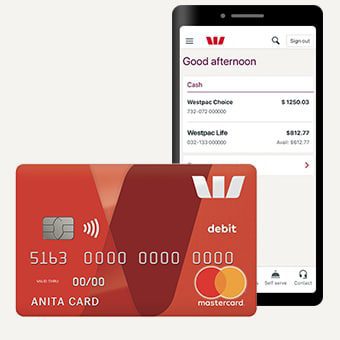
Westpac Digital Banking.jpg
Westpac Digital Banking

Westpac bank Digital Banking Features

With the overhaul of Westpac bank’s mobile app and online banking, the client experience has been enhanced in numerous ways, including the following:

  1. View your balances, transactions, and statements
  2. Pay your credit card bills via Bill Pay
  3. Go paperless with Bill Pay and eStatements
  4. Transfer funds between your accounts or to outside accounts
  5. Set banking alerts or limits
  6. Apply for loans
  7. Update your contact details

How to register for Westpac Online Banking

Ensure you have your card number, Customer ID, and account details before beginning the Westpac Online Banking application; however, you can find your Customer ID near the top of your bank statement.

  1. Kindly visit the online portal to Sign in
  2. Tap Register for Online Banking
  3. Input your card number or Customer ID
  4. Create your security questions and answers
  5. Create a password
  6. Confirm your email and phone number

Forgotten your password?

If you have forgotten your old password, you will need to generate a new one. To do so, you’ll need:

  • Your Customer ID
  • Date of birth
  • The mobile registered for Westpac Protect

Reset your Westpac password In Online Banking

  1. To reset your password using Westpac online baking, kindly Go to Service > Preferences > Security
  2. Select Change password
  3. Enter the Old password and create a new password
  4. Re-enter the new password
  5. Select Submit

How to enroll for Westpac Mobile Banking

Before you can download the Westpac mobile app from Playstore or IOS, you need your card number, Customer ID, and account information in order to register or enroll for the app.

  1. Download the app and click on Existing customer
  2. Click on Register for Online Banking
  3. Input your Customer ID or card number, name, and date of birth
  4. Provide security questions and answers
  5. Create a password
  6. Confirm your email and phone number

Forgotten your password?

Whenever you forget your mobile app password, you can reset it

  1. By clicking on Forgot customer ID or password on the sign-in screen
  2. Click on Forgot password
  3. Input your Customer ID and Date of birth and tap Next
  4. Enter the SMS code sent to your registered mobile
  5. Create and re-enter your new password and tap Next
  6. Once signed in, you can change your password from the Smart Search bar

How do I update my contact details

To update your email address, mobile phone number, and address on Westpac Bank, you will need to register for Westpac Protect so that you may receive an SMS code and verify that it’s you in order to keep your accounts secure… You can update your details via the Westpac mobile app or online banking.

In the Westpac App

  1. To use the mobile app for information updates kindly Search Update contact details in the Smart Search bar.
  2. Edit, add or delete the address, phone number, or email

In Online Banking

Following the instructions below, you can also use online banking to update your personal information with Westpac Bank.

  1. Go to Services > Preferences > Personal details
  2. Select Personal and Contact Details
  3. Enter the SMS code sent to your registered mobile and select Authorize
  4. Edit, Add or Delete the address, phone number, or email

Conclusion:

With Westpac Online Banking, you may pay anyone 24 hours a day, 7 days a week, make Payments, BPAY, and transfer funds both locally and internationally.


- Advertisement -

Pentagon Federal Credit Union (PenFed): Enroll for Online and Mobile Banking and Check Deposit

Penfed Credit Union How To Enroll For Mobile App And Online And Check Deposit.jpg

PenFed is a banking company that provides financial services for consumers and businesses in the United States. They are headquartered in Alexandria, Virginia. PenFed was founded in 1935 as the Pentagon Federal Credit Union by a group of U.S. military officers who were not being served by existing financial institutions at the time.

PenFed has over $3 billion in assets and more than 1.6 million members, making it one of the largest credit unions in the United States. PenFed offers a variety of financial services to their customers, including insurance products and mortgage loans.

Penfed offers many different types of financial services, including insurance products and mortgage loans.

With PenFed Credit Union’s online banking and Mobile App, you can keep track of your money and bank on the go by transferring money, paying bills, looking at your transaction history, and doing many other financial tasks without going to the bank.

Before you can use this service, you need to sign up for online banking and a mobile app. If you are already a PenFed customer, you can read this post to find out how to sign up as a new customer.

- Advertisement -

You also find out how to change your contact information, get E-Statements, raise your credit card limit, upload documents, and make mobile deposits. If you are not a member yet, see How to Join PenFed Credit Union to learn how.

How to become PenFed Credit Union Member

Anyone can join the Pentagon Federal Credit Union. All you have to do is open a savings account and put $5 in it. Then you’re a PenFed member and can start taking advantage of the benefits and discounts on all products and loans. Also, you have to choose whether you want to open a Regular Share account or a Premium Online Savings account.

Benefits of Penfed Credit Union Mobile app and Online banking

  1. You can use online banking and mobile banking from Penfed Credit Union to check on and manage your accounts from your home office.
  2. You can pay your bills right from your bank account when you use online banking.
  3. Online banking will save you time
  4. You can also make payments to a PenFed loan, mortgage, or credit card account.
  5. Penfed Mobile Banking lets you deposit checks in the bank.
  6. You can check your account balance and see what transactions have been made.
  7. Check the status of your loan or credit card applications
  8. Create travel notification alerts for all PenFed credit and debit card accounts.
  9. You can easily move money between your PenFed accounts and accounts at other banks or set up automatic transfers.

How to Enroll in PenFed Online

Before you can use Pentagon Federal Credit Union’s Online Banking and Mobile App to transfer money, pay bills, deposit checks from your phone, and do many other things, you have to sign up for them.

After you sign up for online banking, you can download the PenFed Mobile app to access your PenFed accounts while you’re on the go.

  1. To start PenFed online enrollment process, kindly visit PenFed.org
  2. Tap Setup your online account
  3. Input your phone number, date of birth, and Social Security Number.
  4. Complete the one-time-passcode step by verifying your identity
  5. Set your user name and password, then Tap Submit.
  6. Once done, you should receive a success notification.

You may also like: Bank of America online banking and Mobile app registration process

How to Increase Credit Card Credit Lines

You can use PenFed Online to submit an application to raise the credit limit on any of your card products. This will give you more credit on your credit card.

- Advertisement -
  1. To do that simply log in to your online banking.
  2. Then search for a credit card and click the arrow next to More account info and actions.
  3. Tap Request a Credit Line Increase.
  4. Complete the application.

How to Enroll for Penfed credit union E-Statements

To sign up for E-Statements from PenFed Credit Union, go to PenFed Online and tap the Account Actions tab at the top. Then, choose whether you want to get your statements, documents, and alerts on paper or electronically, and click Save.

When using PenFed Mobile

  1. Click the Menu icon
  2. Click Settings, then tap Go Paperless.
  3. Select Go Paperless… for Everything! if you want PenFed to deliver all available statements, documents, and alerts electronically, or individually select the items you want PenFed to deliver electronically.
  4. Read and then check the boxes acknowledging the disclosure for PenFed Paperless settings, and the Electronic Tax Disclosure.

How to Upload Documents via Penfed credit union

PenFed uses the Secure Upload portal, which lets customers upload their documents from home instead of having to go to the bank.

  • If you are A Member:

Go to PenFed Online and sign in. Scroll down to the box that says “I Want to” on the right side of the screen and click “Secure Document Upload.”

  • If you are Not a Member:

Go to home.penfed.org/s/document-upload and enter your first name, last name, and email address.

  1. Tap Save Settings.
  2. Select the most appropriate Category and Document Type. If you are unsure about which category to use, select Other.
  3. Click Upload Files to select your file.
  4. If you want to upload more documents click the Upload another document button.
  5. Click Submit.

Penfed credit union: How to Make Transfers

By following the steps below, you can easily send money from your Penfed online banking account or mobile app:

  1. Login to PenFed Online.
  2. Tap the Transfers tab.
  3. Select Transfer money between your PenFed Accounts or Transfer to/from your External Accounts.
  4. Set the amount, date, frequency, and other transfer options.
  5. Click Continue.
  6. Review the transfer details and click Submit.

PenFed Mobile App money transfer

By following the steps below, you can easily send money from your Penfed app on mobile:

  1. Tap the Menu icon
  2. Tap Deposits & Transfers, then tap Transfer Money.
  3. Select the transfer details, such as the accounts sending and receiving the transfer, amount, and frequency.
  4. Tap Continue to review your transfer details.
  5. Tap Make Transfer to complete the transfer.

Penfed credit union Mobile Check Deposit

By following the steps below, you can easily send money from your Penfed app:

  1. Click the Menu icon
  2. Tap Deposits & Transfers, then tap Make Deposit.
  3. Select the account to deposit the funds into and enter the amount.
  4. Tap the Front of Check image icon, then the Back of Check image icon, to take clear, well-lit photos of both sides of the check.
  5. Tap Continue.
  6. Review the deposit details for accuracy and tap Deposit Check.

How to Make Payments from Penfed credit union

By following the steps below, you can easily pay your business partner, loans, credit cards, and mortgages from your mobile app and online banking:

  • From PenFed Mobile

  1. Log in to the mobile app
  2. Tap the Menu icon
  3. Tap Loan Payments > Make Payment, or tap Credit Card Payments and select the card you want to pay.
  4. Select the payment details, such as amount, date, and frequency.
  5. Tap Continue to review your payment details.
  6. Tap Make Payment to complete the payment.
  • From PenFed Online

To pay your PenFed mortgage or home equity loan, use the Mortgage and Home Loan Dashboard accessed through PenFed Online. To get there Login to PenFed Online.

  • Mortgages and Home Loans

  1. Scroll to your account and click the View Account Details button. This navigates to the dashboard.
  2. Click Payment Information and follow the prompts to submit your payment.
  • Credit Cards, Loans, and Lines of Credit

  1. Log in to PenFed Online.
  2. Scroll to find your account and click the blue Payment button. (Loan accounts display Make a Payment and Credit Card accounts display Make Payment.)
  3. Set the amount, frequency, and other payment options.
  4. Click Continue.
  5. Review the payment details and click Submit.

How to Enroll for Navy Federal Credit Union Mobile and Online Banking

Navy Federal Credit Union 22.jpg

The Navy Federal Credit Union Digital banking makes it easy, quick, and safe to move money, pay bills, check account balances, and do many other financial tasks. You can quickly and safely check your accounts with your mobile app or online from the comfort of your home without having to go to the bank.

But to get the support and excellent service of a credit union that puts your needs first, you have to join and become part of the family. This will help you reach your financial goals and give you the banking experience you deserve.

This article is meant to answer how to become a member of the Navy Federal Credit Union, how to sign up for online banking, and how to use mobile apps.

Navy Federal Credit Union Membership Requirement

To join the Navy Federal Credit Union, you must be in the military or have family members in the Army, Marine Corps, Navy, Air Force, Coast Guard, National Guard, or Space Force. Civilians who work for the Department of Defense and help the military are also members. But people who are already members and a child’s parent, grandparent, or guardian can also join.

- Advertisement -

Customers who want to join can do so in about 10 minutes. Through our application for minor membership, you can even sign up your children as members. Call us at 1-888-842-6328 or stop by a branch to fill out an application in person.

Navy Federal Credit Union Membership Eligibility

  1. Active Duty, Retired & Veterans
  2. Military Family Members
  3. Department of Defense
  4. Minors

How to become a member of the Navy Federal Credit Union

Before you can become a member of the Navy Federal Credit Union, you need to give the following information:

  1. Social Security Number
  2. Current home address
  3. Driver’s license or government ID
  4. Credit card or bank account and routing number to fund your account

Benefits Navy Federal Credit Union digital banking

  1. With Navy Federal Credit Union, you can easily Manage Your Money, View account balances and past statements, make payments, transfer funds, and order checks.
  2. View card activity, pay off your balance, and report lost cards or suspicious transactions.
  3. Deposit checks safely and securely with mobile deposit
  4. Send money to family and friends in minutes with Zelle
  5. Make payments with free, online Bill Pay
  6. Transfer money to another member
  7. Set up Direct Deposit for quicker access to your pay. NFCU routing number is 256074974.
  8. Activate your debit card in seconds using digital banking.
  9. Go paperless and secure your statements—it’s easy, and convenient, and you can access up to three years of statements.

How to Enroll for Navy Federal Credit Union online banking

Follow the steps below to join or sign up for online banking with Navy Federal Credit Union:

  1. Visit https://accountservices.navyfederal.org/enrollment/
  2. Enter your Personal Information such as Name, Date of Birth, Social Security Number
  3. Follow the onscreen message to complete your registration process.

To sign up for Digital Banking, you can also call NFCU at 1-888-842-6328 or go to a branch.

To join Navy Federal Credit Union, please download the Android app, which is available on all Android devices, or the IOS app, and you’ll be able to manage your accounts smoothly and easily on your phone. To sign up for Digital Banking, you can call 1-888-842-6328 or go to a branch.

You need to make a username and a password for your mobile app. Before entering your new username, click View All Username Requirements to ensure your new credentials are as safe as possible.

  1. Sign in to the mobile app.
  2. Select More from the bottom navigation bar.
  3. Select Profile & Settings.
  4. Select Username in the Profile section.
  5. Enter your new username in the text field. It must contain between 8 and 32 characters, at least one number and letter, and cannot contain any blank spaces.
  6. Select Submit Username.

How to Activate your debit card via Navy Federal Credit Union

Mobile app:

  1. To Activate our Navy Federal app, kindly Sign in
  2. Choose the checking account associated with your debit card
  3. Select “Manage Card” under Card Management and choose “Activate Card.

Online Banking:

You can activate your card by logging in to your online banking account at navyfederal.org and clicking on the “account services” tab.

How to Increase Your Navy Federal Credit Union Line of Credit

Follow the steps below to increase your Navy Federal Credit Union line of credit:

  1. Sign in to the mobile app.
  2. In the Loans and Credit section, choose the credit card account you’d like to request an
  3. Increase for and select Manage Card.
  4. Scroll down to the bottom of the page and select Increase Credit Limit.
  5. Review your contact information to ensure it’s accurate and select Continue
  6. Enter the credit limit amount you’d like to request and select Continue.
  7. Fill in the Primary Application Information and then select Continue.
  8. Review your application and then select Submit and Done.

How to Order Navy Federal Credit Union Cashier’s Checks

Follow these steps to order Navy Federal Credit Union Cashier’s Checks through the app:

  1. Sign in to the mobile app.
  2. Click More in the bottom navigation bar.
  3. Select Send Money, then select Request a Cashier’s Check. Select your template and hit Continue.
  4. Enter payment information and press Continue.
  5. Select your preferred shipping option and delivery address and select Continue.
  6. Review your information and select Submit.

How to Update Your Address with the Navy Federal Credit Union Mobile app

Navy Federal Credit Union makes it easy to change your address with a mobile app. All you have to do is follow these steps:

  1. Sign in to the mobile app.
  2. Select More from the bottom navigation bar.
  3. Select Profile & Settings.
  4. Select Address in the Profile section of the screen.
  5. Select Address Type and fill in the rest of your address information.
  6. Confirm your information and select Update Address.

How to Find Your Navy Federal Credit Union Account & Routing Numbers

You can find your Navy Federal Credit Union account and routing numbers by logging in to your mobile app and following the steps below.

  1. Sign in to the mobile app.
  2. On the Accounts screen, select the Checking or Savings account you’d like to access.
  3. Under your account balance, select Show More Details. This section will expand to show additional information, including your Routing Number.
  4. To see your full account number, select Show on the right.

How to send money from Navy Federal Credit Union with Zelle

You can easily send money from your Navy Federal Credit Union account with Zelle. All you have to do is:

  1. Sign in to the mobile app.
  2. Select More from the bottom navigation bar.
  3. Select Send Money, then Send Money with Zelle.
  4. Press Get Started at the bottom of the screen.
  5. To send money, select Send Money then select Add New Contact and enter your contact’s information. Select Save.
  6. Review the information in the pop-up and press Next.
  7. Enter the amount of money, date, and account you’d like to send money from. Select Review.
  8. Review the information, and if everything looks good, hit Send.